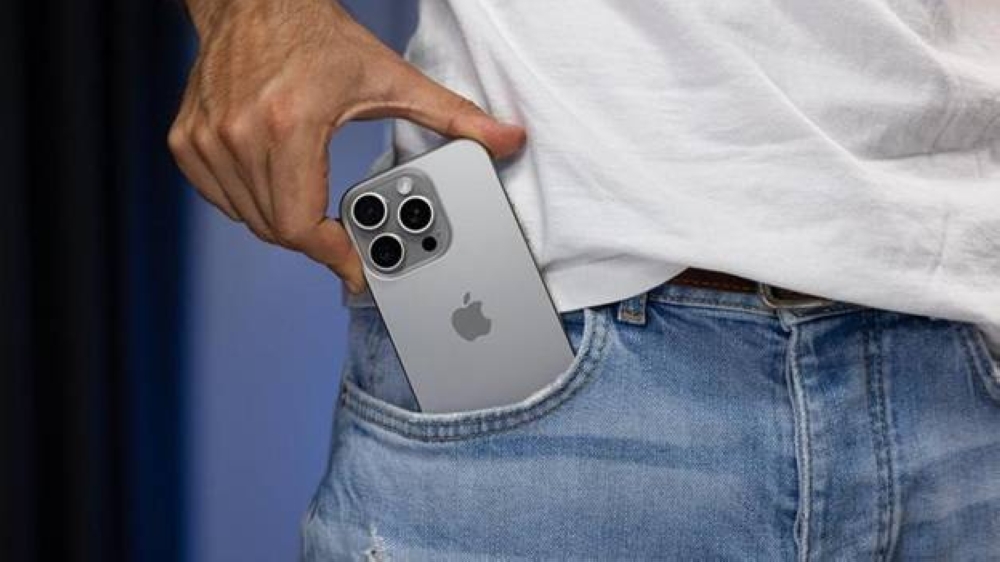
أطلقت «أبل» ميزة «حماية الجهاز المسروق» عند إصدارها لنظام التشغيل iOS 17.3، وتهدف هذه الميزة إلى حماية بياناتك في حال سرقة هاتفك أو وقوعه في أيدٍ غير أمينة، من خلال إضافة طبقة أمان عند وجود جهاز آيفون بعيدًا عن الأماكن المألوفة، مثل المنزل أو العمل، كما تُساعد على حماية حساباتك ومعلوماتك الشخصية في حال سرقة الجهاز.
وإليك كيفية تفعيل ميزة حماية الجهاز المسروق، وما يجب معرفته حول ميزة الأمان الجديدة.
أولًا، افتح الإعدادات، وانقر على «معرف الوجه ورمز المرور»، ثم انقر على «حماية الجهاز المسروق»، وحوّل زر التبديل بجوار «حماية الجهاز المسروق» لتفعيل الميزة.
تتطلب ميزة «حماية الجهاز المسروق» إدخال معلوماتك البيومترية مرة واحدة على الأقل، للوصول إلى بعض إعداداتك ومعلوماتك الحساسة عندما لا تكون في مكان مألوف، مثل منزلك.
ومن بين هذه الإعدادات، استخدام كلمات المرور أو مفاتيح المرور المحفوظة في سلسلة المفاتيح، واستخدام طرق الدفع المحفوظة في سفاري والتي تُملأ تلقائيًّا.
كذلك، قد يطلب الهاتف البيانات البيومترية لمسح جميع المحتويات والإعدادات، أو عند التقدّم بطلب للحصول على حساب أبل جديد، أو استخدام جهاز آيفون لإعداد جهاز جديد.
وتستخدم الميزة أيضًا آلية جديدة تُسمى «تأخير الأمان» عند تغيير بعض الإعدادات؛ فإذا حاولت تغيير هذه الإعدادات وأنت بعيد عن مكان مألوف، فستطلب منك ميزة «حماية الجهاز المسروق» إدخال معلوماتك البيومترية مرتين، مرة في البداية، ومرة أخرى بعد ساعة.
ووفقًا لشركة أبل، إذا وصلت إلى مكان مألوف أثناء انتظار انتهاء فترة التأخير الأمني، فقد ينهي جهازك هذه الفترة قبل أوانها.
يُذكر أن ميزة «تأخير الأمان» تمنع إيقاف تشغيل ميزة «حماية الجهاز المسروق»، وتغيير كلمة مرور معرّف أبل، وتسجيل الخروج من حساب أبل، وإضافة أو إزالة الأجهزة الموثوقة، وغيرها من الإعدادات المهمة، مع العلم أنه يمكنك أيضًا اختيار تفعيل ميزة «تأخير الأمان» دائمًا، حتى عندما تكون في مكان مألوف.
وبهذه الطريقة، إذا فُقد جهاز آيفون في المبنى الذي تعيش فيه أو في مكان آخر يتعرف عليه جهاز الهاتف على أنه مألوف، فستظل لديك طبقة الحماية هذه.
Apple launched the "Stolen Device Protection" feature with the release of iOS 17.3. This feature aims to protect your data in case your phone is stolen or falls into the wrong hands, by adding a layer of security when an iPhone is away from familiar places, such as home or work. It also helps protect your accounts and personal information in the event of device theft.
Here’s how to activate the Stolen Device Protection feature, and what you need to know about this new security feature.
First, open the settings, tap on "Face ID & Passcode," then tap on "Stolen Device Protection," and toggle the switch next to "Stolen Device Protection" to enable the feature.
The "Stolen Device Protection" feature requires you to enter your biometric information at least once to access some of your sensitive settings and information when you are not in a familiar place, such as your home.
Among these settings are using passwords or passkeys saved in your Keychain, and using payment methods saved in Safari that are automatically filled in.
Additionally, the phone may request biometric data to erase all content and settings, or when applying for a new Apple account, or using an iPhone to set up a new device.
The feature also employs a new mechanism called "Security Delay" when changing certain settings; if you attempt to change these settings while away from a familiar location, the "Stolen Device Protection" feature will require you to enter your biometric information twice, once at the beginning and again after an hour.
According to Apple, if you arrive at a familiar location while waiting for the security delay to end, your device may end this period early.
It is worth noting that the "Security Delay" feature prevents the disabling of the "Stolen Device Protection," changing your Apple ID password, signing out of your Apple account, adding or removing trusted devices, and other important settings. You can also choose to enable the "Security Delay" feature permanently, even when you are in a familiar place.
In this way, if your iPhone is lost in the building where you live or in another place that the phone recognizes as familiar, you will still have this layer of protection.