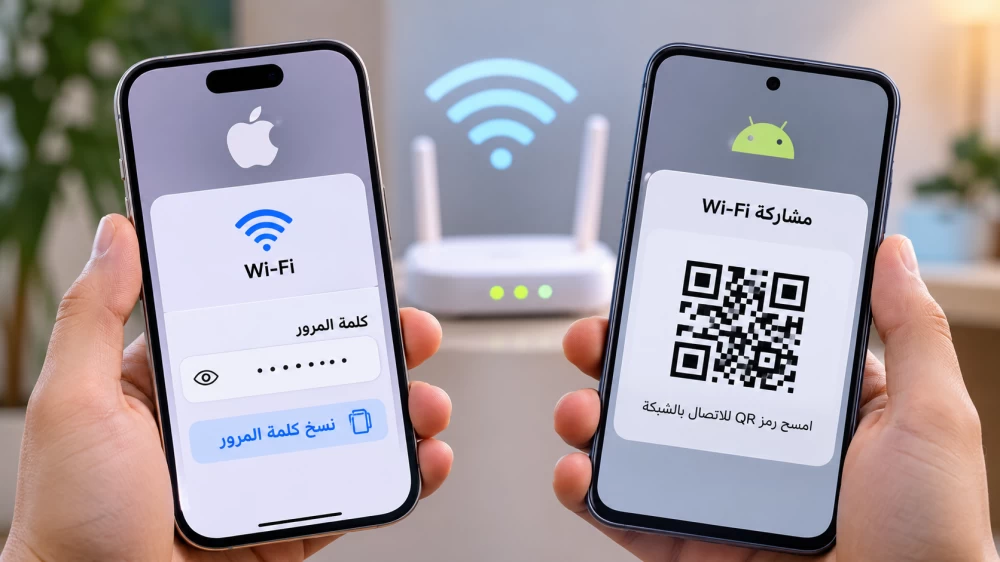
لم يعد نسيان كلمة مرور شبكة «الواي فاي» مشكلة تستدعي إعادة ضبط جهاز الراوتر أو التواصل مع مزود خدمة الإنترنت، إذ توفر الهواتف الذكية الحديثة وسائل سهلة لاستعراض كلمات المرور المحفوظة ومشاركتها مع الأجهزة الأخرى خلال ثوانٍ.
وتتيح أنظمة «آيفون» و«أندرويد» الوصول إلى بيانات الشبكات التي سبق الاتصال بها، سواء بإظهار كلمة المرور مباشرة أو إنشاء رمز استجابة سريعة (QR) يسمح بمشاركة الاتصال دون الحاجة إلى إدخالها يدوياً، وفقاً لتقارير تقنية اطلعت عليها «العربية Business».
استعادة كلمة المرور على آيفون
يمكن لمستخدمي هواتف «آيفون» العاملة بنظام iOS 18 أو الإصدارات الأحدث معرفة كلمات مرور الشبكات المحفوظة عبر تطبيق «Passwords» المدمج في الجهاز.
وتبدأ الخطوات بفتح التطبيق واختيار قسم «Wi-Fi»، ثم تحديد الشبكة المطلوبة والضغط على خانة «Password» لإظهار كلمة المرور، مع إمكانية نسخها واستخدامها على جهاز آخر.
وتشمل هذه الخاصية الشبكات التي اتصل بها الهاتف سابقاً، حتى وإن لم يكن متصلاً بها وقت البحث، بشرط استمرار حفظ بياناتها.
أما مستخدمو نظامَي iOS 16 وiOS 17، فيمكنهم الوصول إلى كلمات المرور من خلال «الإعدادات»، ثم «Wi-Fi»، واختيار «تحرير» لاستعراض الشبكات المحفوظة، قبل الضغط على علامة المعلومات بجوار الشبكة المطلوبة.
وبعد تحديد خانة كلمة المرور، يطلب الهاتف التحقق من الهوية باستخدام بصمة الوجه أو الإصبع أو رمز الدخول، ليتيح إظهارها ونسخها.
معرفة كلمة المرور على أندرويد
تختلف طريقة استعراض كلمات مرور الشبكات المحفوظة على أجهزة «أندرويد» بحسب الشركة المصنعة وإصدار نظام التشغيل.
ففي هواتف «سامسونغ غالاكسي»، يمكن الدخول إلى «الإعدادات»، ثم «الاتصالات» و«Wi-Fi»، والضغط على رمز الإعدادات بجوار الشبكة المتصل بها الهاتف، للوصول إلى خيار إظهار كلمة المرور إذا كان متاحاً في إصدار الجهاز، بعد التحقق من الهوية.
أما في هواتف «غوغل بيكسل» وبعض أجهزة أندرويد الأخرى، فتبدأ الخطوات من «الإعدادات»، ثم «الشبكة والإنترنت»، واختيار «الإنترنت»، والضغط على إعدادات الشبكة المتصل بها الجهاز، ثم اختيار «مشاركة».
وعند إتمام التحقق من الهوية، يظهر رمز «QR» الخاص بالشبكة، وقد تظهر كلمة المرور مكتوبة أسفله في الأجهزة التي تدعم هذه الميزة.
مشاركة الشبكة دون كتابة كلمة المرور
وتوفر هواتف «أندرويد» إمكانية مشاركة الاتصال بالإنترنت باستخدام رمز «QR»، إذ يستطيع المستخدم إظهاره من إعدادات الشبكة، ليقوم الشخص الآخر بمسحه بكاميرا هاتفه والاتصال مباشرة.
وفي أجهزة «سامسونغ»، يمكن الوصول إلى الرمز عبر «الإعدادات»، ثم «الاتصالات» و«Wi-Fi»، واختيار الشبكة الحالية والضغط على «QR Code».
ولا تتطلب هذه الطريقة إظهار كلمة المرور نصياً، لكنها تسمح للجهاز الآخر بالاتصال بالشبكة، مع اختلاف خطوات الوصول إلى الخاصية بين الهواتف والإصدارات.
تنبيه مهم
وتقتصر هذه الوسائل على الشبكات التي يحتفظ الهاتف ببياناتها أو يتصل بها بالفعل، ولا تتيح معرفة كلمات مرور شبكات لم يسبق الاتصال بها.
كما يُنصح بعدم مشاركة رمز «QR» مع أشخاص غير موثوقين، نظراً لإمكانية استخدامه للاتصال بالشبكة دون إدخال كلمة المرور.
Forgetting the Wi-Fi network password is no longer a problem that requires resetting the router or contacting the internet service provider, as modern smartphones provide easy ways to view saved passwords and share them with other devices within seconds.
Both iPhone and Android systems allow access to the data of previously connected networks, either by displaying the password directly or by creating a QR code that enables sharing the connection without the need to enter it manually, according to technology reports reviewed by "Al Arabiya Business".
Recovering the Password on iPhone
Users of iPhones running iOS 18 or later can find saved network passwords through the built-in "Passwords" app on the device.
The steps begin by opening the app and selecting the "Wi-Fi" section, then choosing the desired network and tapping on the "Password" field to reveal the password, with the option to copy it and use it on another device.
This feature includes networks that the phone has previously connected to, even if it is not currently connected to them, as long as their data is still saved.
For users of iOS 16 and iOS 17, they can access passwords through "Settings," then "Wi-Fi," and select "Edit" to view saved networks before tapping the information icon next to the desired network.
After selecting the password field, the phone will prompt for identity verification using Face ID, Touch ID, or a passcode, allowing the password to be displayed and copied.
Finding the Password on Android
The method for viewing saved network passwords on Android devices varies by manufacturer and operating system version.
On Samsung Galaxy phones, users can go to "Settings," then "Connections" and "Wi-Fi," and tap the settings icon next to the network the phone is connected to, to access the option to show the password if available in the device's version, after verifying their identity.
On Google Pixel phones and some other Android devices, the steps start from "Settings," then "Network & Internet," selecting "Internet," tapping on the settings for the connected network, and then choosing "Share."
After completing identity verification, the network's QR code will appear, and the password may be displayed below it on devices that support this feature.
Sharing the Network Without Typing the Password
Android phones offer the ability to share internet access using a QR code, which the user can display from the network settings, allowing the other person to scan it with their phone camera and connect directly.
On Samsung devices, the code can be accessed through "Settings," then "Connections" and "Wi-Fi," selecting the current network and tapping "QR Code."
This method does not require displaying the password in text form, but it allows the other device to connect to the network, with variations in the steps to access the feature between phones and versions.
Important Notice
These methods are limited to networks that the phone has saved data for or is currently connected to, and do not allow access to passwords for networks that have not been previously connected to.
It is also advised not to share the QR code with untrusted individuals, as it can be used to connect to the network without entering the password.